 MoveLog
 is an iOS application designed to record your routes, time, distance, speed, and elevation with precision using your iPhone’s GPS.
Whether you are walking, running, cycling, touring, hiking, or traveling, MoveLog helps you preserve every journey as a lasting memory.
Table of Contents
- Features & Use Cases
- Getting Started (Step-by-Step)
- Detailed Stats & Graphs
- Browsing & Searching Past Logs
- GPX Export & Import (Cross-App Integration)
- Web Route Sharing
- Privacy by Design (Location Security)
- Frequently Asked Questions (FAQ)
- Important Notes & Contact
Features & Use Cases
MoveLog is crafted with simplicity, privacy, and reliability in mind.
Popular Use Cases
- Walking & Urban Exploring: Track your daily walking routes or uncover hidden alleys in new cities.
- Running & Jogging: Review your pace, distance, and elevation profiles to improve training.
- Cycling & Touring: Log long rides or scenic motorcycle trips to relive them on the map.
- Hiking & Mountaineering: Monitor altitude changes and pace for a safer outdoor adventure.
- Travel & Road Trips: Archive road trips and sight-seeing spots into a digital travel diary.
Key Highlights
- Intuitive Simplicity: No complicated setup. Tap the record button and your route is tracked.
- Background Tracking: MoveLog reliably logs your location in the background even if you switch apps or lock your screen.
- Privacy-First Architecture: Your location data stays strictly on your device and your personal iCloud storage. It is never automatically transmitted to third-party or developer servers.
- Modern Design: Clean maps, interactive elevation and speed charts, and native Dark Mode support.
Getting Started
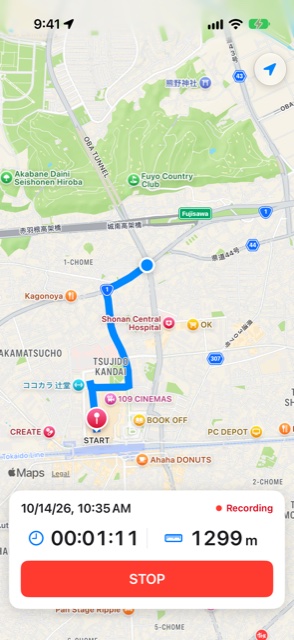
1. Start Recording
Open MoveLog and tap the large circular record button on the bottom card. The button will change to an active recording state, tracking your route in real time.
- While recording, you can see your current elapsed time, distance, and speed at a glance.
- Tracking continues even if your iPhone is locked or in your pocket.
2. Pause and Resume
Need to take a break or hop on a train? Tap the record button again to pause. Tap once more to resume recording when you are ready.
3. Save and Finish
When your journey ends, finish the recording from the card menu or detail view. You can give your route a custom name (e.g., “Mount Takao Hike”, “Morning River Run”).
Detailed Stats & Graphs
Tap any saved log to review comprehensive route metrics and graphs.
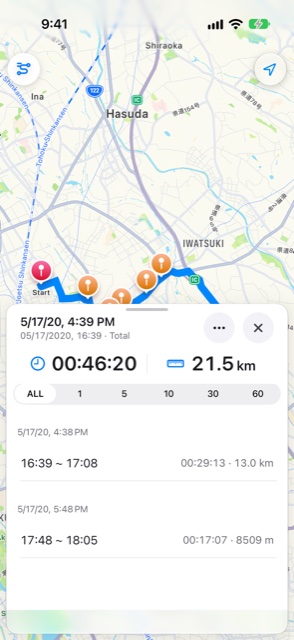
Summary Metrics
- Total Distance: Overall distance traveled (km or miles).
- Duration / Moving Time: Total elapsed time from start to finish.
- Average & Max Speed: Overall pace and the highest recorded speed.
- Elevation Gain & Loss: Lowest, highest, and cumulative elevation gain.
Distance, Speed & Elevation Graphs
Analyze your performance visually with interactive graphs.
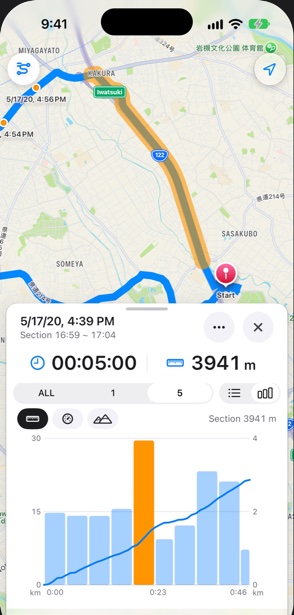
- Elevation Profile: Understand where steep climbs and descents occurred.
- Speed Graph: Pinpoint fast downhill sections, sprint intervals, or stops at traffic lights.
- Interactive Map Sync: Tap any segment on the graph to highlight the exact location on the map.
Browsing & Searching Past Logs
Easily revisit your past routes, no matter how many activities you have recorded.
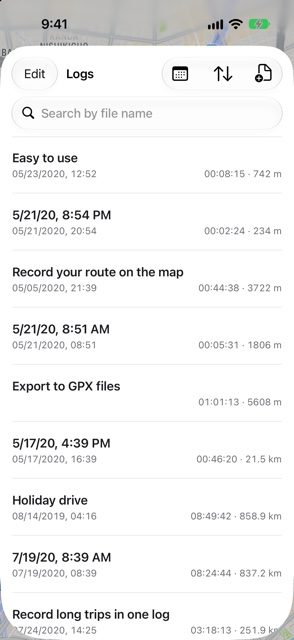
Logs List
All saved activities are organized chronologically.
- Search: Find logs quickly by searching for keywords or place names.
- Sort: Order logs by date, distance, or duration.
Organizing with Tags
Add tags such as Walk, Running, Driving, Touring and Trip to organize your logs. Default tags are ready from the start, and you can add your own.
- Add or remove: Tap “Add tag” on the log detail screen and choose a tag. Tap the “x” on a tag to remove it. To create a new tag, type a name and tap “Add” (up to 9 characters; up to 5 tags per log).
- Filter: Choose a tag from the button at the top left of the logs list to show only logs with that tag. Tap “Clear” to go back.
- Manage: Rename or delete tags from “Manage tags…” in the same menu.
Calendar View
Tap the calendar icon in the top right to switch to the monthly calendar view.
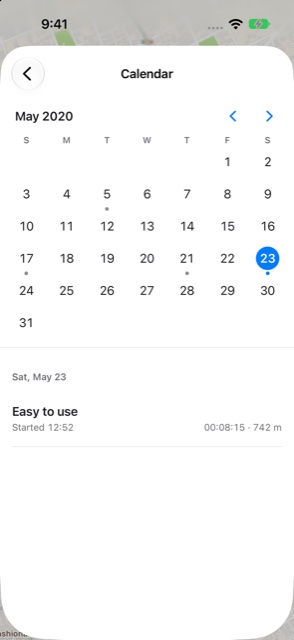
- Dates with recorded activities display indicator dots. Tap any date to jump directly to that day’s logs.
GPX Export & Import
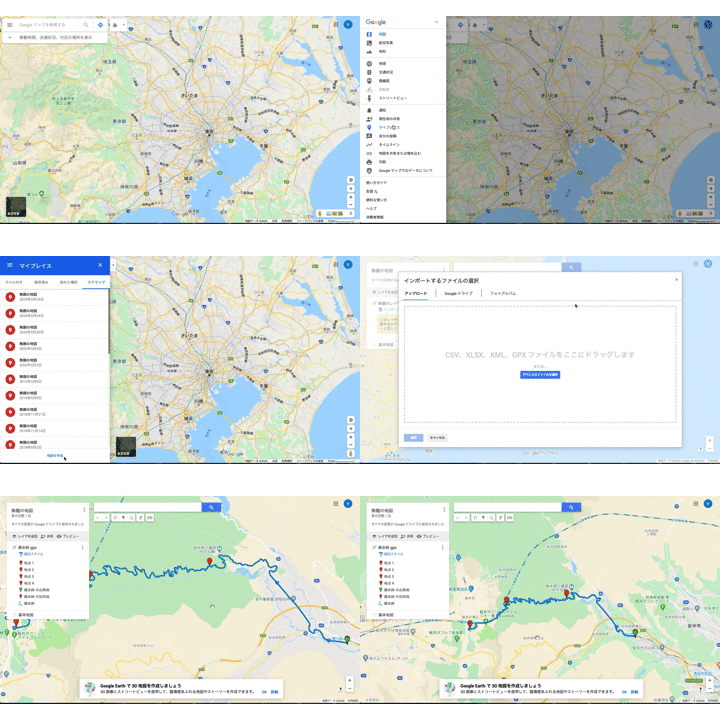
MoveLog provides full support for GPX (GPS Exchange Format), the industry standard for outdoor and navigational data.
Exporting GPX
From the log details menu (“…”), select “Export as GPX”. You can easily share the file via AirDrop, Mail, the Files app, or cloud storage.
- Google My Maps: Import your GPX file into Google My Maps in any web browser to create custom shareable maps.
- Google Earth 3D: Open GPX routes in Google Earth for an immersive 3D fly-through over mountains and landscapes.
- Other Platforms: Easily import your data into Strava, Komoot, or specialized fitness tracking platforms.
Importing GPX
You can also import GPX files recorded with other GPS units, smartwatches, or hiking apps directly into MoveLog. Simply open the file on iOS and choose “Open in MoveLog”.
Web Route Sharing
Share your favorite routes with friends, family, or social media followers—even if they do not have MoveLog installed.
Shareable Route Cards & Links
- From the record details, choose “Share” to generate a pixel-art style route card and a dedicated URL (
https://www.movelog.info/share/...). - Share the link via Messages, WhatsApp, X, or email. Recipients can inspect the route shape, distance, and duration directly in their browser.
- Privacy Protection: The shared web page displays an abstract route visualization and summary metrics, without revealing sensitive raw GPS coordinates or exact home locations. Shared links automatically expire after 7 days for enhanced privacy.
👉 Try the live interactive Share Card here
Privacy by Design
Location history is among the most sensitive personal data. MoveLog is designed from the ground up to protect your privacy:
- Local & iCloud Storage Only:
- Detailed GPS coordinates (latitude, longitude, altitude, timestamps) remain strictly on your device and your personal iCloud account.
- We do not run background telemetry that collects your location history.
- Safe Web Sharing:
- Route shapes are only uploaded to the sharing service when you explicitly choose to share a route.
- Full Transparency:
- Read our comprehensive Privacy Policy for full details on data handling.
Frequently Asked Questions (FAQ)
Q1. Does MoveLog continue recording in the background?
A. Yes, MoveLog records routes in the background. You can lock your iPhone or use other apps, and your route will be logged seamlessly. Note: Ensure location permissions for MoveLog in iPhone Settings are set to “Always” or “While Using App” with Precise Location enabled.
Q2. How can I minimize battery consumption during long trips?
A. When recording for extended periods, you can reduce battery consumption with these tips:
- Keep the screen off and device locked while moving.
- Pause recording when inside long tunnels or underground subway cars where GPS signal is unreachable.
- Bring a compact power bank on long mountain hikes or multi-hour cycling tours.
Q3. Why does the recorded distance increase slightly when I am standing still?
A. Indoors, near skyscrapers, or in dense valleys, GPS signals can bounce off structures (multipath interference), causing coordinates to fluctuate by a few meters. MoveLog filters out noise, but slight drift can still occur until you return to an open sky.
Q4. How do I transfer my logs when switching to a new iPhone?
A. As long as iCloud sync is enabled and you use the same Apple account, simply download MoveLog on your new iPhone and your records will restore automatically. You can also back up important logs as GPX files at any time.
Q5. Can I edit route names or delete old logs?
A. Yes. In the detail view of any log, tap the “…” menu to rename the route or delete it permanently.
Important Notes & Contact
Operational Notes
- GPS Coverage: Signal may be degraded or lost indoors, underground, in deep canyons, or inside long tunnels.
- Safety First: Never operate or stare at your phone screen while driving, cycling, or walking across streets.
- Battery Life: Continuous GPS tracking consumes more battery than regular standby.
Support & Feedback
MoveLog is continuously refined by an independent developer. If you have questions, feature requests, or bug reports, feel free to reach out:
- Official X: @movelog_info
- Support Email: contact@mail.mayuki12.com
- Privacy Policy: Privacy Policy
- Release Notes: Release Notes